How to Use a Birthday Invitation Canva Template: A Step-by-Step Guide
If you're looking for an easy and creative way to design a birthday invitation, using a Birthday Invitation Canva Template is an excellent choice. Canva offers a wide range of customizable templates that make it simple for anyone—whether you're a beginner or an experienced designer—to create professional-looking invitations. This guide will walk you through the process of downloading, installing, and using a birthday invitation template on Canva.
What Is a Birthday Invitation Canva Template?
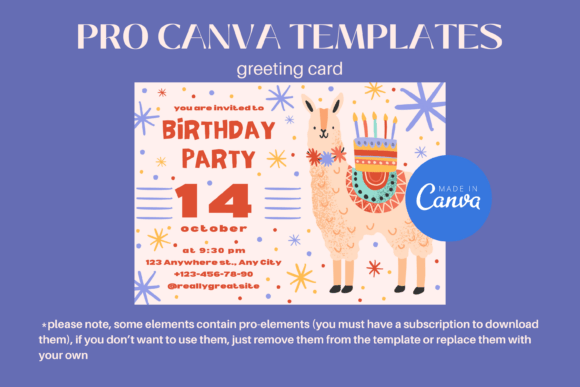
A Birthday Invitation Canva Template is a pre-designed layout that you can customize to suit your specific needs. These templates are designed with elements like text boxes, images, and graphics that you can easily edit. They save time and effort by providing a structured format that you can personalize with your own details, such as the guest name, date, time, and location of the party.
Canva is a user-friendly online design tool that allows you to create everything from social media posts to presentations and invitations. With its drag-and-drop interface, even those without design experience can produce stunning visuals in minutes.
Downloading the Template
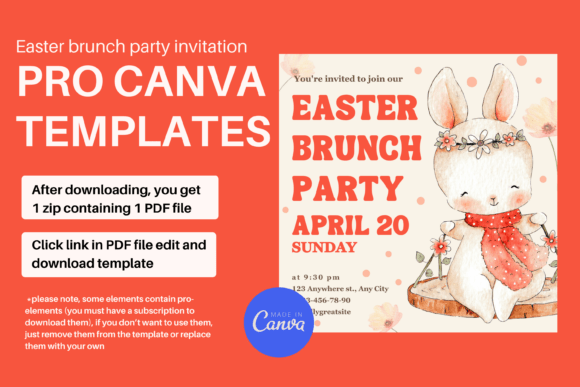
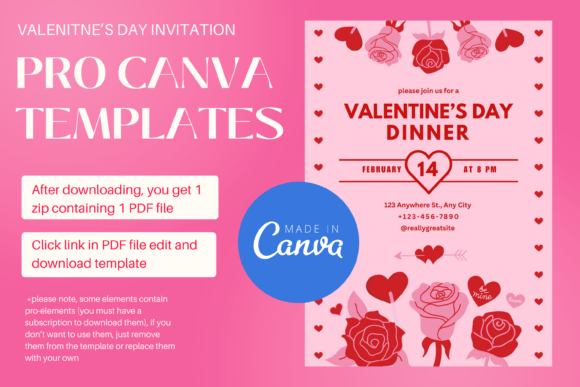
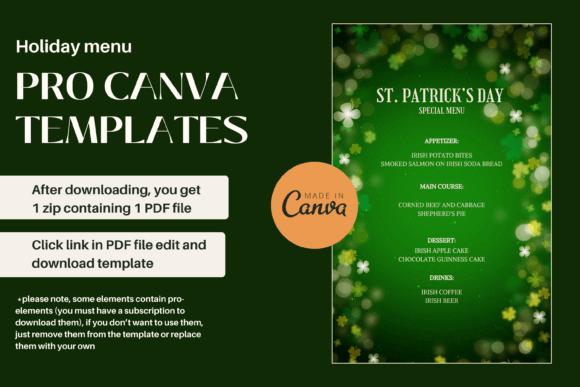
The first step in using a Birthday Invitation Canva Template is to download the file. Once you've found a suitable template, you'll typically receive a zip file and a PDF file. The zip file contains the necessary design elements, while the PDF file includes a link that redirects you to the Canva page where the template is hosted.
After downloading the files, you'll need to extract the contents of the zip folder. This will give you access to the template and any additional assets that may be included.
Opening the Link in Canva
The next step is to open the link provided in the PDF file. This link will take you directly to the Canva page where the template is located. Make sure you have a Canva account before proceeding. If you don't have one, you can sign up for free at canva.com.
Once you're logged into your Canva account, the template should appear on your screen. You can now begin customizing it to match your preferences. Canva's interface is intuitive, so you'll be able to navigate through the tools and features with ease.
Customizing the Template
With the template open, you can start editing it to fit your event. Here are some key steps to follow:
- Edit Text: Click on the text boxes to change the content. You can add the guest's name, the date, time, and other important details.
- Change Colors and Fonts: Canva allows you to modify the color scheme and font styles to match the theme of the party.
- Add Images: You can upload your own images or choose from Canva's extensive library of stock photos and graphics.
- Adjust Layout: If needed, you can rearrange elements to better suit your design vision.
Saving and Downloading the Final Design
Once you're satisfied with your design, you'll want to save the template. Canva allows you to save your work directly to your account, so you can access it later if needed. However, if you prefer to download the final version, you can do so in various formats, including JPG, PNG, and PDF.
It's important to note that some elements in the template may require a Canva Pro subscription to access. If you encounter any pro elements that you don't want to use, you can simply remove them or replace them with your own content.
Why Use a Birthday Invitation Canva Template?
There are several reasons why using a Birthday Invitation Canva Template is a great choice:
- Time-Saving: Templates provide a ready-made structure, eliminating the need to start from scratch.
- Professional Results: Even if you're not a designer, you can create visually appealing invitations that look polished and well-put-together.
- Flexibility: You can customize the template to match your personal style or the theme of the event.
- Accessibility: Canva is accessible from any device with an internet connection, making it easy to work on your design anytime, anywhere.
Common Misconceptions About Using Canva Templates
Some people may assume that using a Canva template means your design will look generic or unoriginal. However, this isn't the case. While the template provides a starting point, the final result depends entirely on how you customize it. By adding unique elements, changing colors, and adjusting layouts, you can create a design that's truly one-of-a-kind.
Another common misconception is that Canva is only for beginners. In reality, Canva is used by professionals as well, thanks to its powerful design tools and extensive library of resources.
Tips for Creating the Perfect Birthday Invitation
To ensure your birthday invitation stands out, consider the following tips:
- Choose a Theme: Decide on a theme for the party, such as a beach party, retro celebration, or a formal event. This will help guide your design choices.
- Use High-Quality Images: If you're adding images, make sure they are clear and relevant to the theme.
- Keep It Simple: Avoid cluttering the design with too many elements. A clean and organized layout is more effective.
- Include All Necessary Details: Make sure to include the date, time, location, and any special instructions for guests.
Stay Updated with New Templates
If you enjoy using Canva templates, consider subscribing to the creator's channel or newsletter. This way, you'll be notified when new templates are released, giving you access to fresh and innovative designs. Subscribing also helps support creators who invest time and effort into developing high-quality templates.
Thank you for visiting and exploring the world of Birthday Invitation Canva Templates. Whether you're planning a small gathering or a large celebration, these templates can help you create a memorable and visually appealing invitation that your guests will love.